
forever geeks
  • Home
  • Author
  • Links
  • Archives

Configure A Linksys Router with a Static IP Address

Most home routers are used out of the box without much custom customization, some people don’t even setup a security SSID key, so they have their wireless access point wide open to the public. but if you are planning on tinkering with your Linksys router settings, go ahead, on this article I will show you how to change your router IP address from dynamic to static IP address.

Remember that if you are setting up a static IP address on your home router, you need to get the IP information from your Internet service provider (ISP) or get it from your current router configuration, but keep in mind that ISPs assign IP addresses dynamically, so your actual IP address could change anytime. now, if you are assigning the static IP address from your network, then make sure is in the same subnet mask as your other devices on your network, otherwise the router will be NATTED from your network. for example if your network use the class C IP address range 192.168.1.x then your router should have an IP address on that same range.

Setting up the Linksys router with static IP address

login to your router using whatever IP you have setup on the router, and click on the Setup tab. on the Internet Connection Type choose Static IP on the drop down menu:
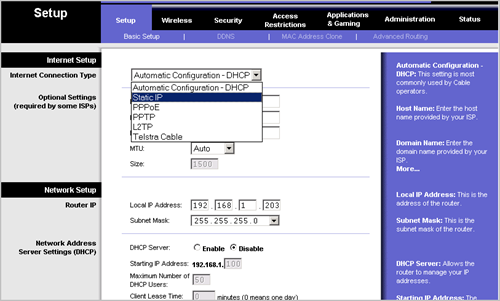
static IP

on the setting fields that come up, enter the appropriate information.

  • Internet IP address: Enter your chosen IP address
  • Subnet Mask : Enter the subnet mask of your network here
  • Gateway : Enter the default gateway here
  • Static DNS : Enter at least 2 DNS server IP addresses
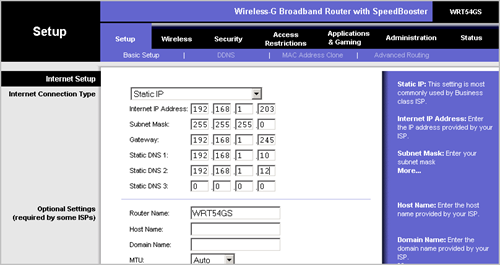
static IP addresses

click on Save Setting underneath and that should make the router user static IP address instead of the dynamically assigned one.


Related Articles:

Setup Linksys Router With Radius Server Authentication

How To Network Home Computers

Setup Linksys Router With Radius Server

Changing Comcast DNS Servers

Internet Explorer Page Cannot Be Display Error

Setting Up Outlook 2007 with RPC over HTTP

How To Install Active Directory On Windows Server 2008

Setup Outlook With Exchange Cached Mode on Outlook 2007


No Comments »

No comments yet.

RSS feed for comments on this post. TrackBack URI

Leave a comment

If you want to leave a feedback to this post or to some other user´s comment, simply fill out the form below.

(required)

(required)


  • Popular Stuff

    • How To Connect To a Wireless Access Point in Windows 7
    • How To Setup A Wireless Profile On Windows 7
    • Why is Seaport.exe process running on my Computer?
    • Change Product Key On Windows Server 2008
    • Import Contacts From Palm Desktop To Iphone
    • Outlook Automatic synchronization
    • the trust relationship between this workstation and the primary domain failed
    • Windows 7 Minimum Requirements
    • VMware Server 2.0 Username And Password
    • Convert VMDK VMware to VHD Virtual Server Files
    • Split .PST files into smaller files
    • Printer not printing document correctly
  • Latest Posts

    • Is Your Computer Windows 7 Ready?
    • Choosing The Right Windows 7 Edition
    • Brief History Of Windows 7
    • How To Transfer Files From Windows XP to Windows 7
    • Laptop Screen Black On Startup – Everything Else Working
    • Prevent Programs Running At Start-Up Script
    • How To Clean Temporary Internet Files With A Log Off Script
    • Disable MSN Messenger From Always Running At Start-Up

Privacy Policy | Smart Energy Meters | Trackit Software | Help Desk Software | Articles | About | Sitemap