

As you probably know Active Directory stores information about objects on the network and makes this information available to users and network administrators. AD uses domain controllers to give network users access to permitted resources anywhere on the network through a single logon process. In this article I will go through the installation of active directory on Windows server 2008.
Table of Contents
Prerequisites
- Have Windows server 2008 already installed.
- Have administrative privilege on the system
- be able to reboot the system any time.
- Have an NTFS partition with enough free space
Things you should keep in mind
- If you are installing active directory on windows server 2008 for the first time, it must be a global catalog server, it cannot be RODC.
- NT 4.0 domain controllers are not supported on windows server 2008 anymore. if you still have NT domain controllers on your network, you need to have 2000/2003 DCs to support them.
- If you are making windows 2008 a domain controller on 2003 forest, you must prepare the forest for windows 2008 by running ADPREP.
Final preparations
the last thing I will do to start the installation of active directory is to change the name of the computer to reflect the new status. to do that, login to the server and click on the Start button and right-click on Computer and go to Properties. at the bottom under computer name, domain, and workgroup settings, click on the Change settings:
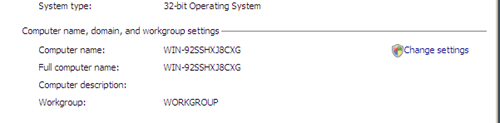
the System Property window will come up.
click on the change tab, and change the computer name to whatever you want.
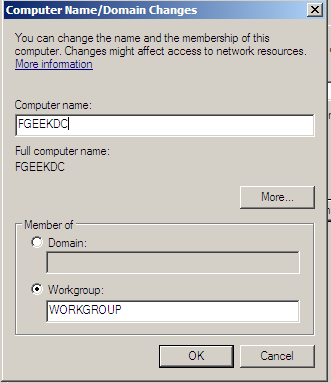
Click on the OK button. Windows Server 2008 will now reboot.
Installing Active Directory Domain Services
Now that we have renamed the computer to something that reflects the new role on windows server 2008, we will proceed with the installation of active directory. I always recommend using the server manager interface when installing active directory and other network services. to install active directory domain services, go to Start and click on Server Manager.
the server manager window will come up:
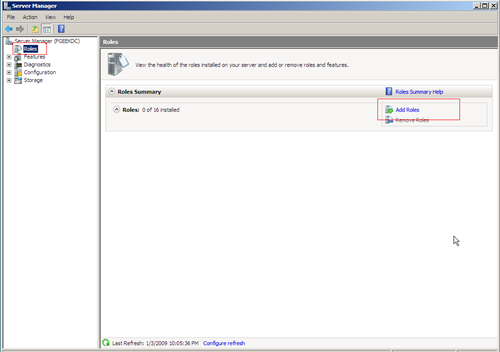
The Select Server Role window will come up:
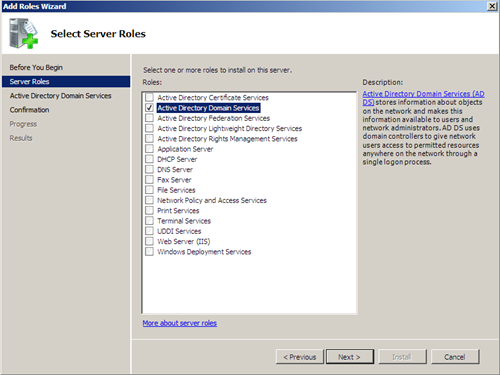
Make sure the Active Directory Domain Services option is checked.
click on Next after checking the option.
Active directory domain services (AD DS) is something new on Windows Server 2008. on the following window you can read a small introduction about it. click next when you finish reading.
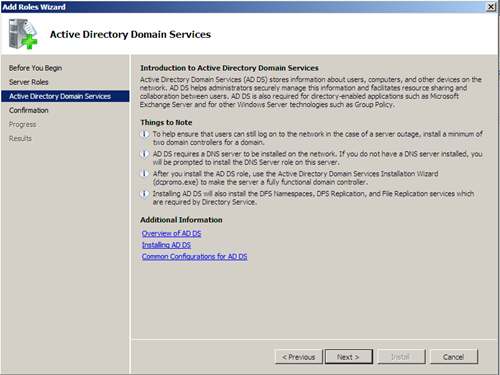
click Next on the above window.
on the following window, you will be asked to confirm the installation of domain services:
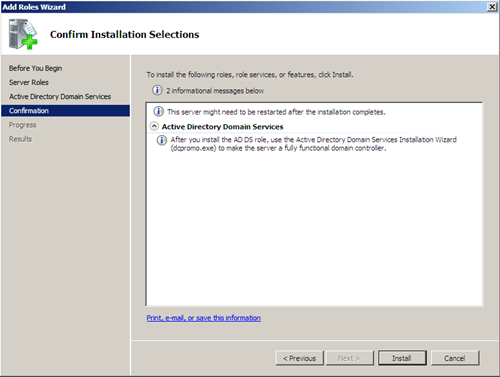
click on Install to start the installation.
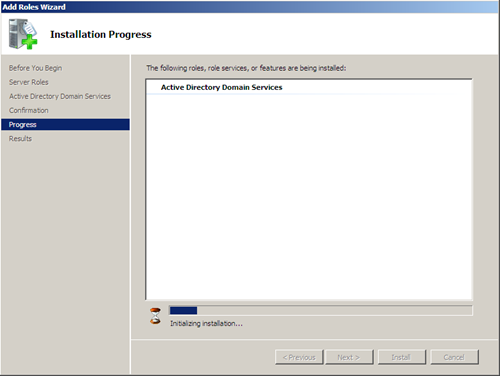
You should receive the Installation Results window after the installation completes.
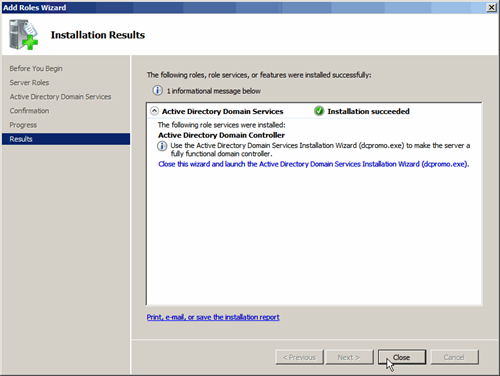
Note: this only installs Active Directory domain services, it does not make Windows server 2008 a domain controller. for that we will need to run the DCPROMO wizard.
Installing Active Directory Domain Controller
after Active Directory Domain Services have been installed, you should return to the Server Role Interface. click on Active Directory Domain Services:
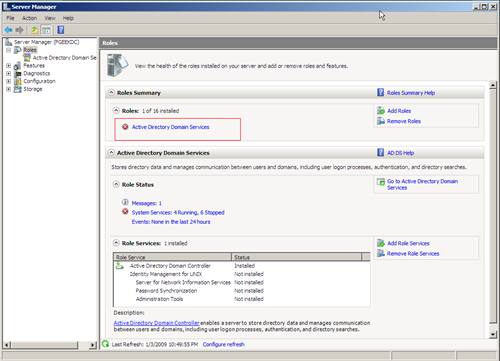
on the window that pops up, you will see a summary message that reads, “This server is not yet running as a domain controller: Run Active Directory Domain Services Installation Wizard ( dcpromo.exe)
Click on the blue link.

by clicking on the blue link, the dcpromo.exe wizard should come up:
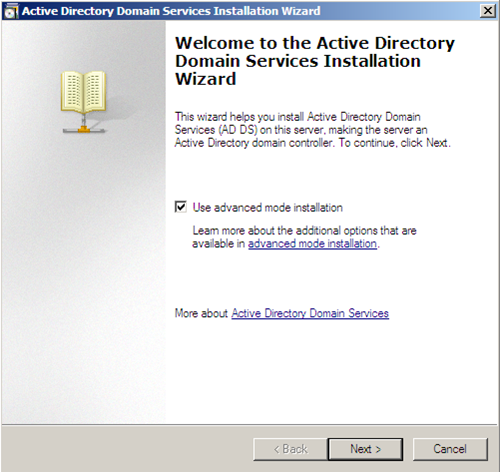
make sure “Use advanced mode installation” option is checked and click Next.
read the provided information on the next screen. that explains some new features on windows server 2008 domain services that might affect older Windows operating systems and non Microsoft SMB clients on an existing domain.
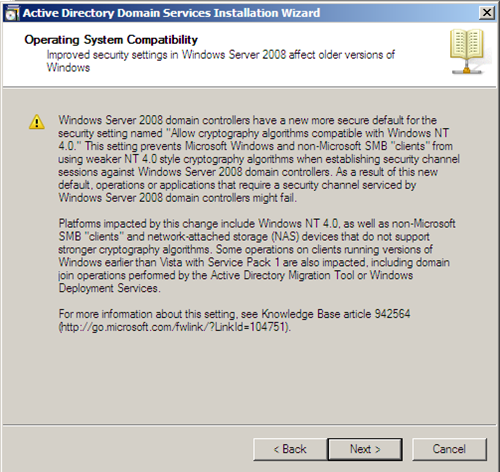
Click Next after you read the above warning.
on the following screen, choose your deployment configuration.
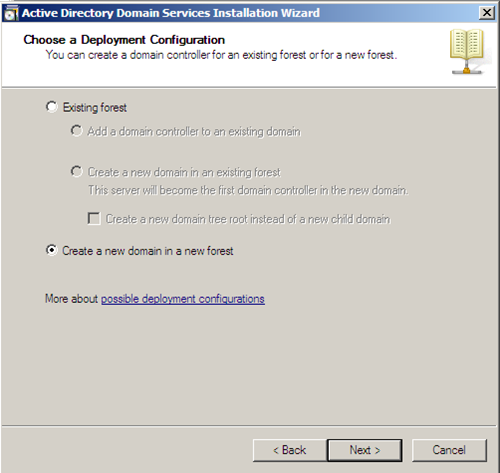
because this is my first domain controller, I will choose the “Create a new domain in a new forest” option.
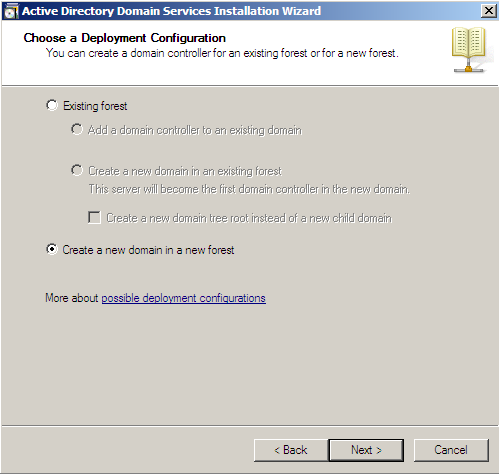
click on Next.
Choose the name for your forest root domain on the following window.
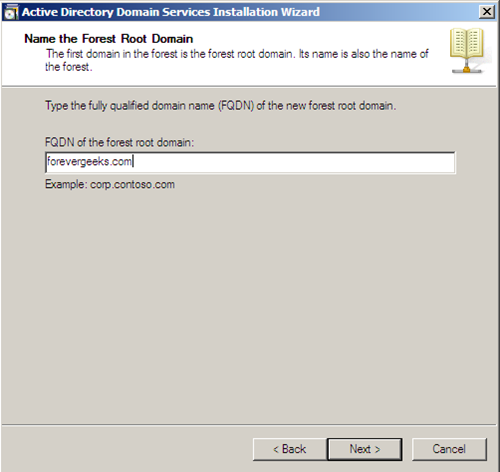
click Next after choosing your fully qualified domain name.
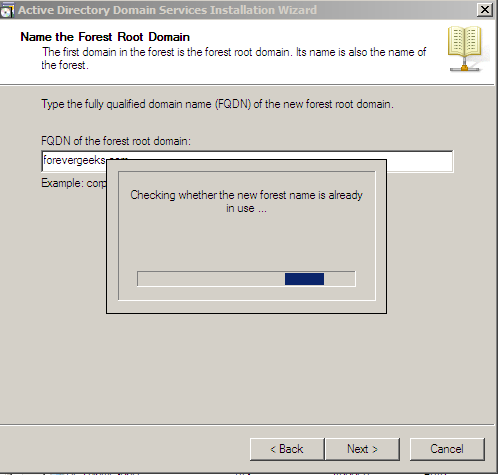
the wizard will check if that forest name is already in used:
after a few seconds, the wizard will ask you to enter the NetBIOS name:
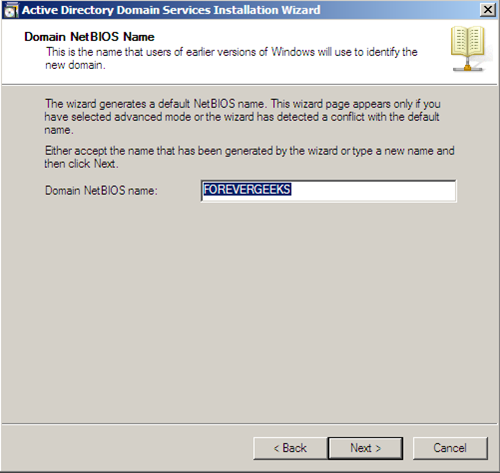
the default NetBIOS name should be fine. click on the Next tab.
on the following screen, choose the forest functional level:

I will choose Windows Server 2003 as my functional level. Choosing windows server 2008 functional level does not provide any new features over the Windows 2003 forest functional level. However, it ensures that any new domains created in this forest will automatically operate at the Windows Server 2008 domain functional level, which does provide unique features. click on Next.
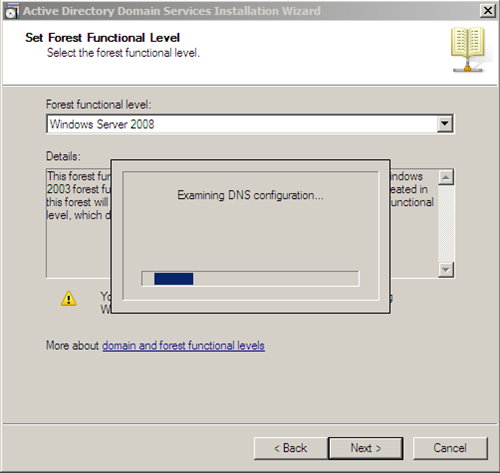
Clicking next, the dcpromo wizard will check for DNS configurations.
If DNS is not installed on your system, choose the DNS Server option on the following screen.

here you get the info that tells you:
The first domain controller in a forest must be a global catalog server and cannot be an RODC.
Click on Next.
if your server does have static IP address assigned on the server, you might get the following warning:
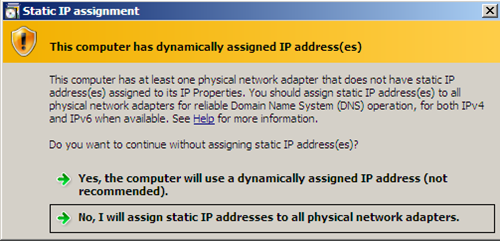
as you can see, having dynamic assigned IP address is not recommended. use static IP addresses for servers whenever is possible.
choose your option, and click Next.
another warning:
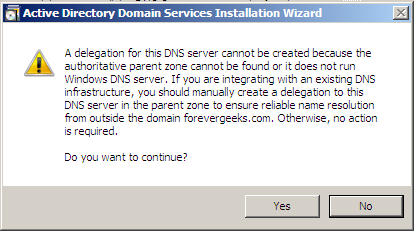
if you get this warning, click on OK.
choose the location of the AD database on the following screen:
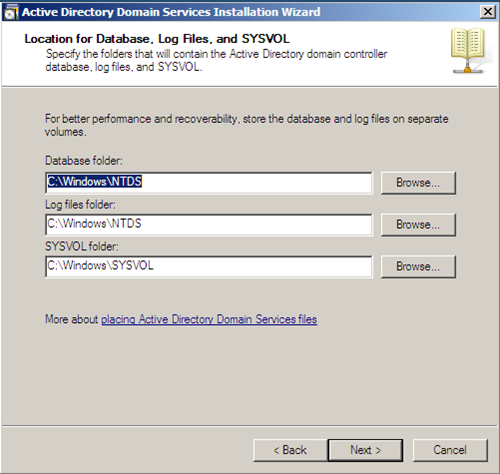
Leave the default settings, and click on Next.
Enter your the password for your Restore Mode Administrator on the following screen.

click Next after entering the password.
on the following screen you should get the Summary page.

click on Next.
damn it!! I got an error saying I need to install DNS manually.

“An error occurred while the wizard was installing DNS, you will have to configure DNS for this domain manually.
this is the first time I let the dcpromo.exe to configure DNS for me, and I kind of was expecting for this error. that will be the subject of the next article.
click OK on the error for now.
active directory installation should start installing. but it won’t work perfect until DNS is install.

after awhile, you should get the completion window.
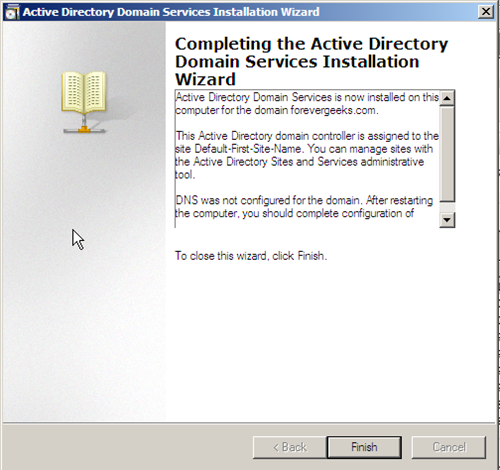
click on Finish.
you will need to reboot the computer.
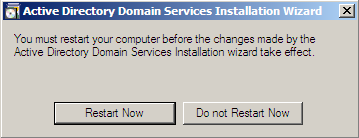
go ahead and restart the computer, and if you need to install DNS do so after the reboot.
Was this helpful?
19 people found this helpful