
Import Contacts From Palm Desktop To Iphone


If you are one of those people upgrading from a palm pilot to an iphone probably you are having a hard time importing your contacts from the  palm software to the iphone. luckily there is always a way to do things, so in this article I will share some tips on how to do that.

The only way to synch contacts to the iphone is by using itunes ( that’s the only way I know of) so the route we need to take is getting our contacts from the palm desktop software to Outlook and then to the iphone. some palm software have the ability to synch to outlook using software like PocketMirror etc. so that would make things simpler by just synching your itunes with Outlook.  but I guess that’s not your case, otherwise you wouldn’t be here (:-)

The Palm Desktop software does not let you export data in many formats, the most common formats you can export are .ABA and .CSV, and the only formant Outlook accept is .CSV so I guess the only option we have is to export contacts as .CVS format, here is how you do it.

Step 1: from your palm desktop software click on File and then Export . choose to export the file as “comma separated (*.csv;.text) and on range select ALL. save the file anywhere you want, but make sure you remember where it is.

Step 2. once the contacts have been exported, you need to modify the field names in the .csv file , so Outlook can recognize it.  these are some of the fields Outlook will recognize:

  • First Name
  • Last Name
  • Job Title
  • Business Name
  • Business State
  • Postal Code
  • Business Country
  • Business Phone
  • Home Phone
  • Mobile Phone
  • E-mail Address

for example your spreadsheet will look like this:
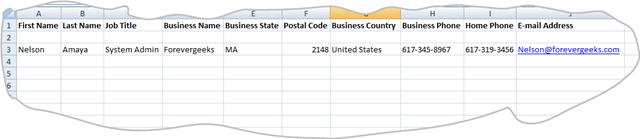
CSV file

step 3:

after you finish modifying the spreadsheet you need to import them to Outlook. to do that go to your outlook and click on File, and then choose Import and Export:
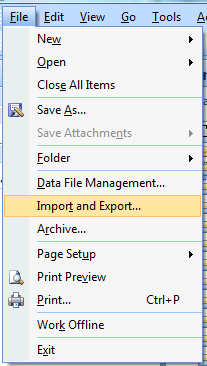
Import and export

Then choose Import from a another program or file:
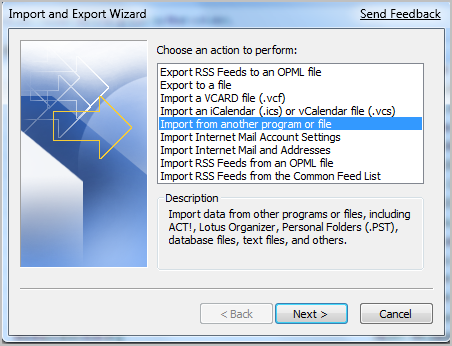
Import from a program or file

Choose Comma Separated Values (Windows) on the following screen:
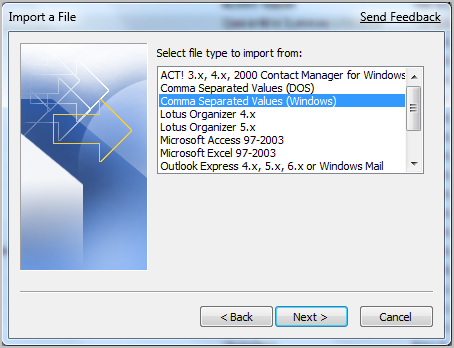
comman separated values

choose the .CSV file you created earlier, by clicking on the browse button:
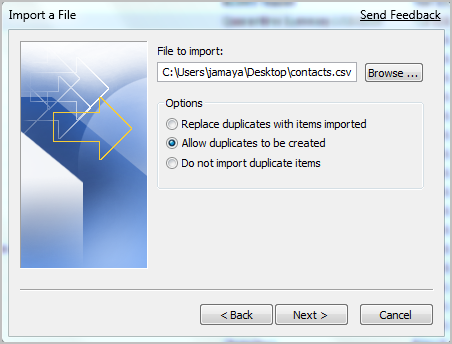
File to import

from here choose if you want to import duplicates or not.

select your destination folder on the next screen.
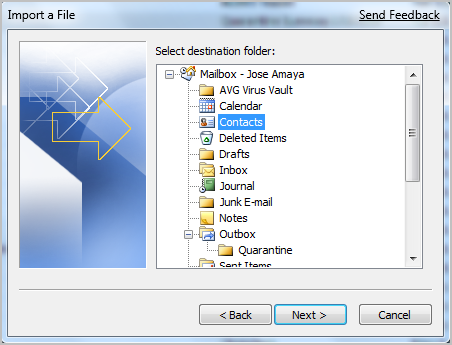
Destination folder.

click on Finish on the following screen.
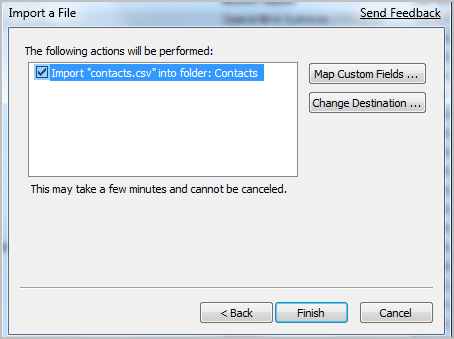
Importing a file - last stage

that should import your contacts to Outlook.

Step 4 :

now you need to synch your Outlook contacts with itunes.

when you open itunes, your iphone should get recognize automatically. click on the iphone icon, and the following screen will show up:
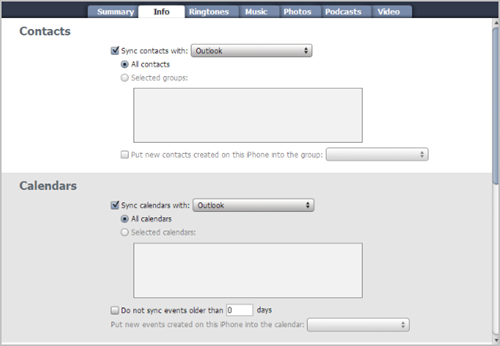
image 

under the info tab.

scroll to the bottom, and click on Synch.

that should start the synching between Outlook and itunes.

good luck.


Related Posts


17 Comments »

  1. Comment by: How to Get Six Pack Fast

    The style of writing is quite familiar . Did you write guest posts for other blogs?

  2. Comment by: Clarence

    How about this easy way:
    All the instructions I found online suggested going through Outlook, but that didn’t work for me for a variety of reasons. I found this other method that worked really well.

    1. Bring up Palm Desktop. Make sure your Palm phone is sync’ed up. Show the Address page, select all contacts (Ctrl-A), and export them with File, Export vCard… This puts all contact information into a single file as a sequence of vCards.
    2. Bring up Windows Address Book. You can find this in Start, All Program, Accessories, Address Book.
    3. Using Windows Explorer, drag the vCard file you created in step 1 to the Windows Address Book window. I had never used Windows Address Book, so it was empty. If yours isn’t empty, you’ll have to decide whether you want to merge your contacts.
    4. When you drop the file, you’ll get a window asking you to confirm the first contact. Press OK. Another window will come up for the second contact. Press OK until all windows are gone. It’s easiest to hold down the Enter key.
    5. Bring up iTunes with your iPhone plugged in. Go to your iPhone page, to the Info tab, and configure it to sync from Windows Address Book. Click Apply in the lower-right corner of the window.
    6. Sync your iPhone. Verify that your contacts transferred over.
    7. Tell iTunes to stop sync’ing with Windows Address Book, since you probably only wanted a one-way sync. Your contacts will be backed up anyway by iTunes, so the Address Book sync feature doesn’t buy you much.

  3. Comment by: Michelle

    Thanks so much for this great info– I updated all my contacts with no problems!!!
    I have had this Treo for a long time and when I finally upgraded to the IPhone I was worried that it would be really difficult to sync the contacts– but this was great help!

  4. Comment by: Tom

    I’m an Iphone newbie (which may seem obvious from following question). I will use Clarence’s suggestion from above to move from palm to Iphone. If I also want some of my contacts to sync from my work outlook, can I do this without syncing the contacts that I imported from palm back to outlook? Basically, I don’t want my personal contacts on my work outlook, but want both personal and work on my Iphone…. so I want 1-way sync from Outlook to Iphone. Easily accomplished?

  5. Comment by: Kim3258

    WOW! that worked great!!! Thanks.

  6. Comment by: Elizabeth

    Clarence’s idea and instructions were fantastic!! This worked perfectly to transfer contact info from my Palm LifeDrive into my new iPod Touch. I’m not a techie and could accomplish this without a flaw. Thank you, Clarence; You da Man!!

  7. Comment by: Ted

    Wow, thanks Clarence! worked great and my wife is so happy I got her data transferred. Thanks to you, I’m a hero. :-)

  8. Comment by: Damien

    This worked great for me to. I transferred my contacts from my palm centro to my new iPhone. Do you know where can I access/manage my contacts in iTunes?

  9. Comment by: Kathy

    I have Palm Desktop 4.1 and the only export mode it offers is .dba. Need to transfer calendar/contact data to my iPhone and Outlook. HELP!

  10. Comment by: julian

    thanks Clarence! great work I got all data transferred.

  11. Comment by: frank

    i tried clarences idea and it is a good one however i have alot of data/info in the notes portion of my palm contacts and it was “cut off”. so only a small portion of that information was converted over. Does any one know how to get “all” data converted/imported over?

  12. Comment by: frank

    continuing my previous comment: That was importing into the windows address book. some data got cut-off. windows address book must not allow much data to be written there(the “other” tab and notes section) whereas palm allows a lot of info to be written in there. any solution to this would be great!

  13. Comment by: Ann

    Holy Cow! Thanks so much!! I have ancient palm desktop software on my computer and wanted to sync it with my new iphone. I dreaded the hours of hand entering all my contacts but it took, literally, 2 minutes to get them all in there!! Thanks soooo much!!!

  14. Pingback by: I got my wife an iPhone today - Page 4 - Digital Radio Central

    [...] method involves syncing the Palm contacts and Calendars to Outlook, then to iTunes. Import Contacts From Palm Desktop To Iphone __________________  Apple iPod Classic 160GB (Black)   Apple iPhone 3GS [...]

  15. Comment by: MC

    I was able to transfer my contacts and calendar (10 years of data) from my Palm Centro (Palm Desktop 6.2) to my iPhone 4 very easily. I am no techie by any stretch of the imagination. I downloaded CompanionLink Pro http://www.companionlink.com/downloads/ to my PC. This is free for the first 14 days. I have no need for this program other than the transfer, so I do not intend to use it after 14 days.

    Using CompanionLink, I transferred my Palm contacts and calendar to my google account. Be sure to select the date range under advanced settings if you want more than a few months from your calendar. This transferred beautifully. Even the information in the custom fields for contacts transferred. The only glitch were my tasks which were all put in today’s date on the calendar.

    Then I sync’d my iPhone using iTunes. I selected syncing contacts with my google account. All my contacts transferred beautifully to the iPhone.

    Then, the calendar was sync’d over the air using Exchange. Follow these instructions: http://www.google.com/support/mobile/bin/answer.py?answer=138740&topic=14252. If you want to sync many years from your calendar be sure to go to the settings button on your iPhone, select mail contacts calendar, and select sync all events.

    This worked great for me after the genius at the apple store could not transfer my Palm contacts and calendar to my new iPhone. Hope it works for you.

  16. Comment by: Virginia

    thank you thank you Clarence – that was surprisingly easy – a couple of things I had to figure out, esp I couldn’t find “windows explorer” but used “my documents” (and remembered what I had named the file…) Some of my phone numbers look funny, then I recalled that I had coded them with a number “how late I can call them”, which evidently confused the phone number decoder (wrong number of digits so it didn’t know where to put the () and – , so i’ll go back & check them all. But WAY less time than re-entering! (I am also a computer neophyte – born way before the digital divide – so your simple instructions were a godsend.

  17. Comment by: Virginia

    ref: Frank’s situation – same thing for me except most of mine were short enuf – or I hit return and kept my lines short? because it did accept several lines of data, but some long lines were truncated – so I seem to have only lost a little. But I’ll also be interested to see if anyone has a solution to that problem.

Leave a comment

If you want to leave a feedback to this post or to some other user´s comment, simply fill out the form below.

(required)

(required)