Make Outlook 2007 Prompt You For Username And Password


It’s a common practice among users that after they have logged on to Windows to automatically have access to all their personal and business application without entering any logon credentials. they do this by using active directory features like Windows Authentication. Outlook is one of those applications that automatically check your Windows credentials against active directory, if both are the same, you are automatically logged in to your inbox without asking for any username and password. if you don’t like this behavior in Outlook for privacy reasons, you can change it to prompt you for your domain username and password every time you open it.

Change Outlook settings to prompt you for username and password

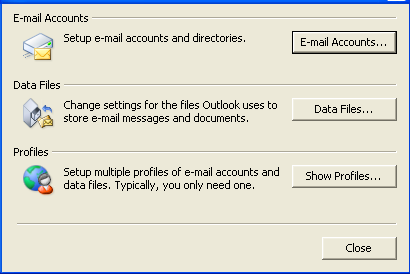
Go to Control Panel and click on the Mail applet. the mail setup wizard will come up:

Outlook Mail Setup

Click on the E-mail Accounts button.

the Account Settings window will come up next.
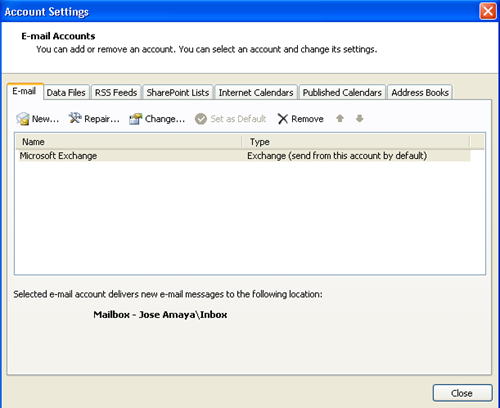
E-mail Accounts Settings

Click on the Change Button.

the Change E-mail Account window will show up:
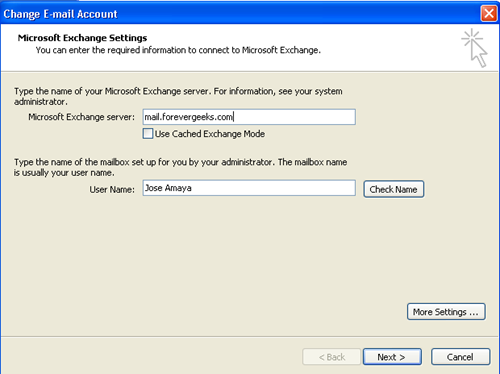
Account E-mail Accounts

Click on the More Settings.

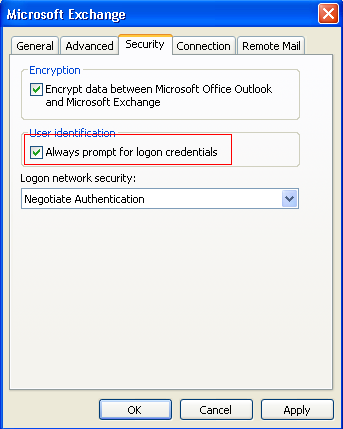
The Microsoft Exchange window will come up:

Microsoft Exchange

click on the Security Tab.

image

Make sure the “Always prompt for logon credentials” option is checked under the security tab, and click on the Apply button. then click on OK on all the open windows.

restart Outlook to check the new settings.


Related Posts


No Comments »

No comments yet.

Leave a comment

If you want to leave a feedback to this post or to some other user´s comment, simply fill out the form below.

(required)

(required)